

VSCode插件离线安装教程:VSIX文件下载与安装指南
Intro
之前在小红书刷到帖子,楼主不能正常下载 VSCode 汉化插件,当时评论了在 Marketplace 下载 VSIX 文件离线安装的方法;后续有人反馈找不到下载按钮,在 VSCode Marketplace 上找了一下,发现 VSCode 团队似乎把这个 UI 入口移除了;本文介绍如何通过 VSCode 通过 API 接口离线下载插件,以及如何安装离线下载的插件。 One of the main reasons for the removal of the Download Extension button was that it was not supporting pre-release extensions, and was a constant source of user confusion. E.g. users want to download the latest release version of the extension, but the button downloads the highest version, which is the pre-release version. Also platform specific extensions dropdown was highly confusing. Having the Download Extension button in VS Code - both of those problems get fixed, the right platform gets auto-picked, and the release / pre-release is respected. 省流版:插件市场移除下载按钮的原因是为了避免用户下载到不适合自己平台的插件,或者下载到预发布版本的插件
VSCode插件VSIX文件离线下载方法
该方法使用的微软官方的 API 接口,相对稳定。以汉化插件为例
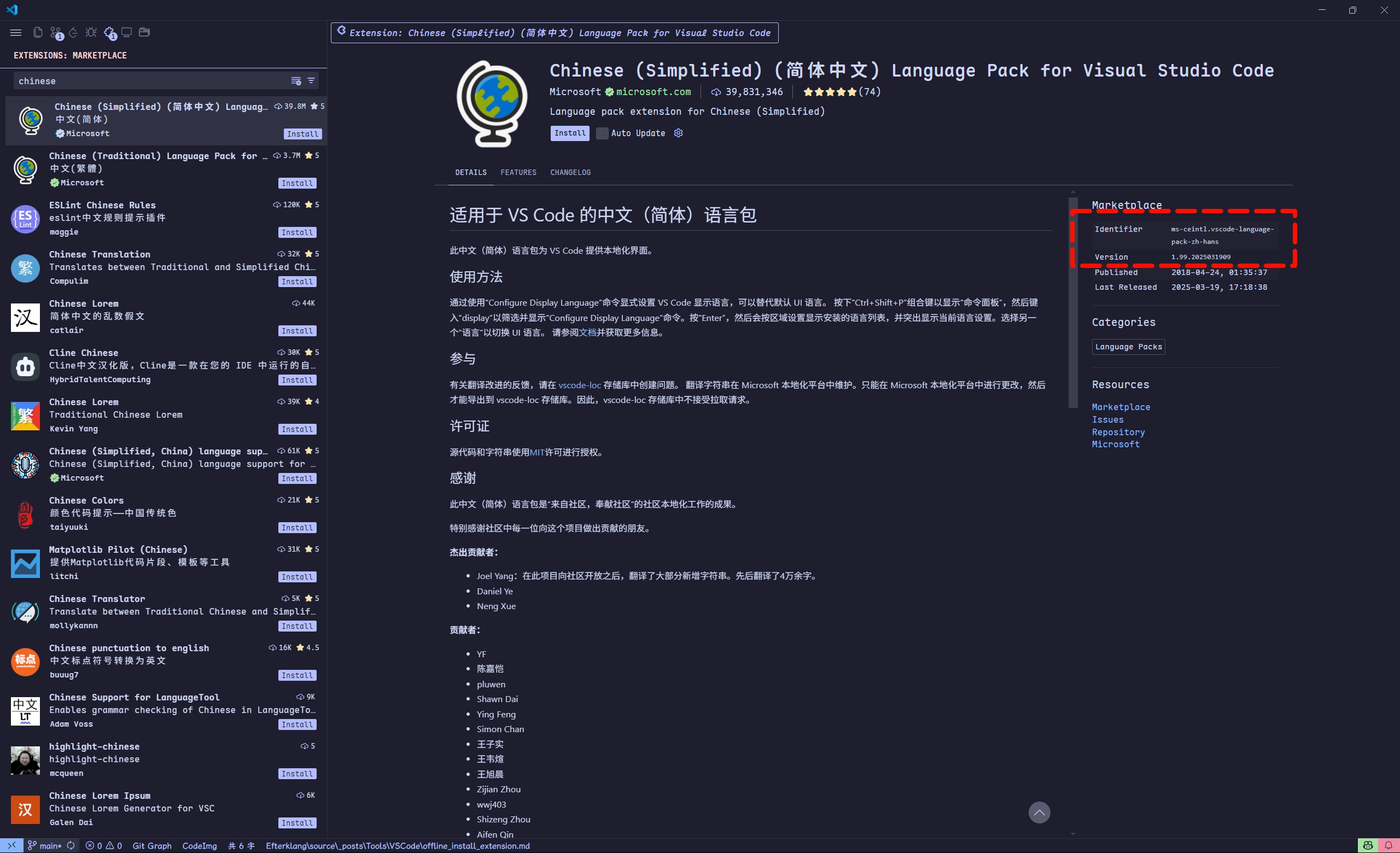
插件右侧有如下信息,在右侧侧边栏找到 More Info 区域,记录以下两个关键信息:
- Identifier:
ms-ceintl.vscode-language-pack-zh-hans - Version:
1.99.2025031909
VSCode 下载插件的链接格式为:
https://marketplace.visualstudio.com/_apis/public/gallery/publishers/{publisher_id}/vsextensions/{extension_name}/{version}/vspackage
替换链接中的占位符
| 参数占位符 | 说明 | 示例值 (中文插件) | 对应 ID 部分 |
|---|---|---|---|
{publisher_id} | 发布者 ID | ms-ceintl | ID 点号前面的部分 |
{extension_name} | 插件名称 | vscode-language-pack-zh-hans | ID 点号后面的部分 |
{version} | 版本号 | 1.99.2025031909 | Version 字段 |
打开https://marketplace.visualstudio.com/_apis/public/gallery/publishers/ms-ceintl/vsextensions/vscode-language-pack-zh-hans/1.99.2025031909/vspackage链接,即可在浏览器下载插件到本地,格式一般为 部分插件须下载对应系统的版本,如果直接下载通用包可能无法使用,可在链接末尾添加 .vsix
?targetPlatform={platform} 参数指定目标平台。Binary type Target Platform Alpine Linux 64 bit alpine-x64 Alpine Linux ARM64 alpine-arm64 Linux ARM32 linux-armhf Linux ARM64 linux-arm64 Linux x64 linux-x64 Windows ARM win32-arm64 Windows x64 win32-x64 macOS Apple Silicon darwin-arm64 macOS Intel darwin-x64
或者可以在以下网站在线搜索插件,下载 VSIX 文件
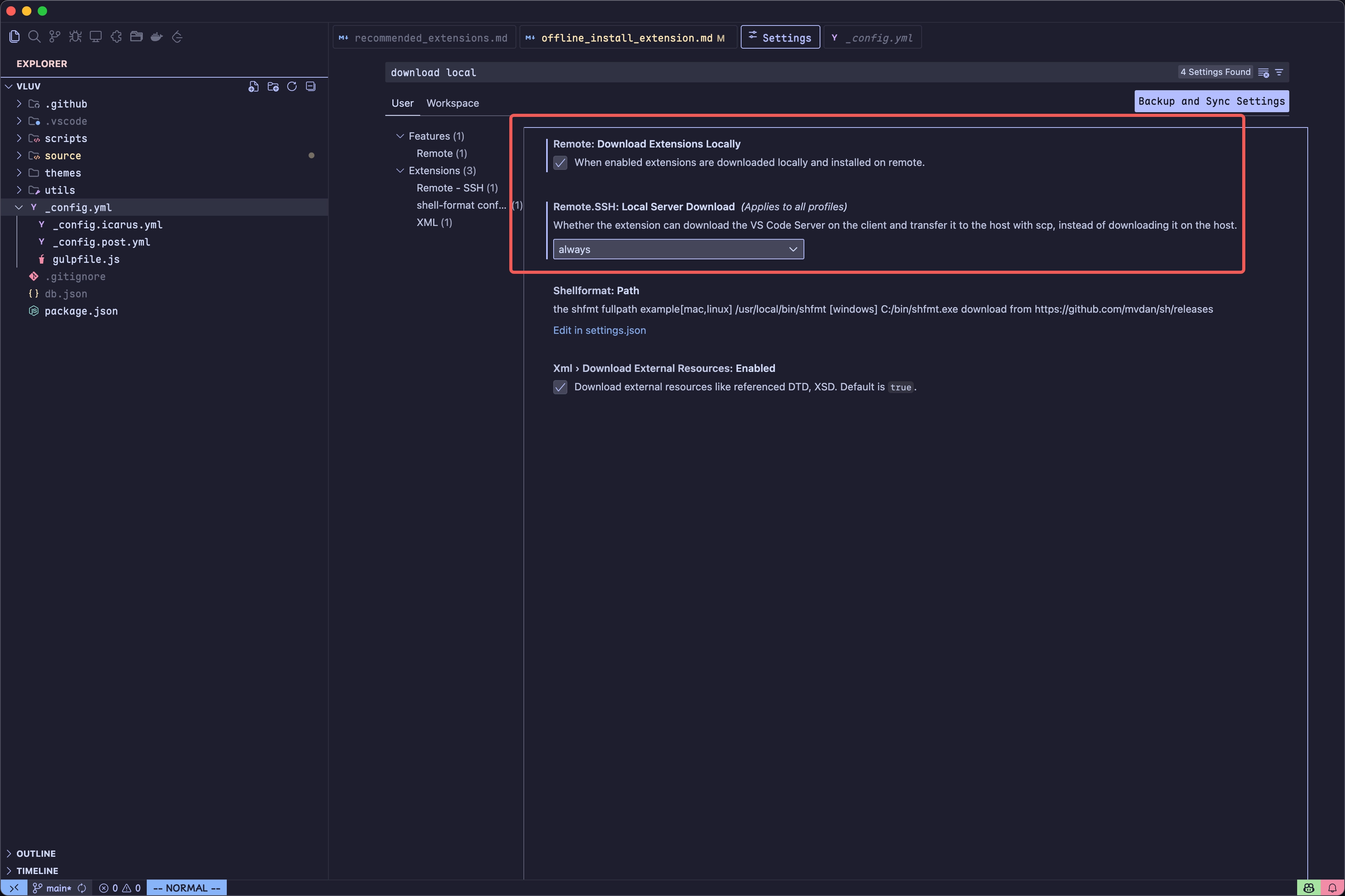
部分场景是:localhost 有网络,但 ssh 连接的 remote host 不能访问外网 🌚
解决方案:参考如下设置。
启用后,将会在 localhost download .vsix file,使用 scp 将插件发生到 remote host
VSIX插件文件安装步骤详解
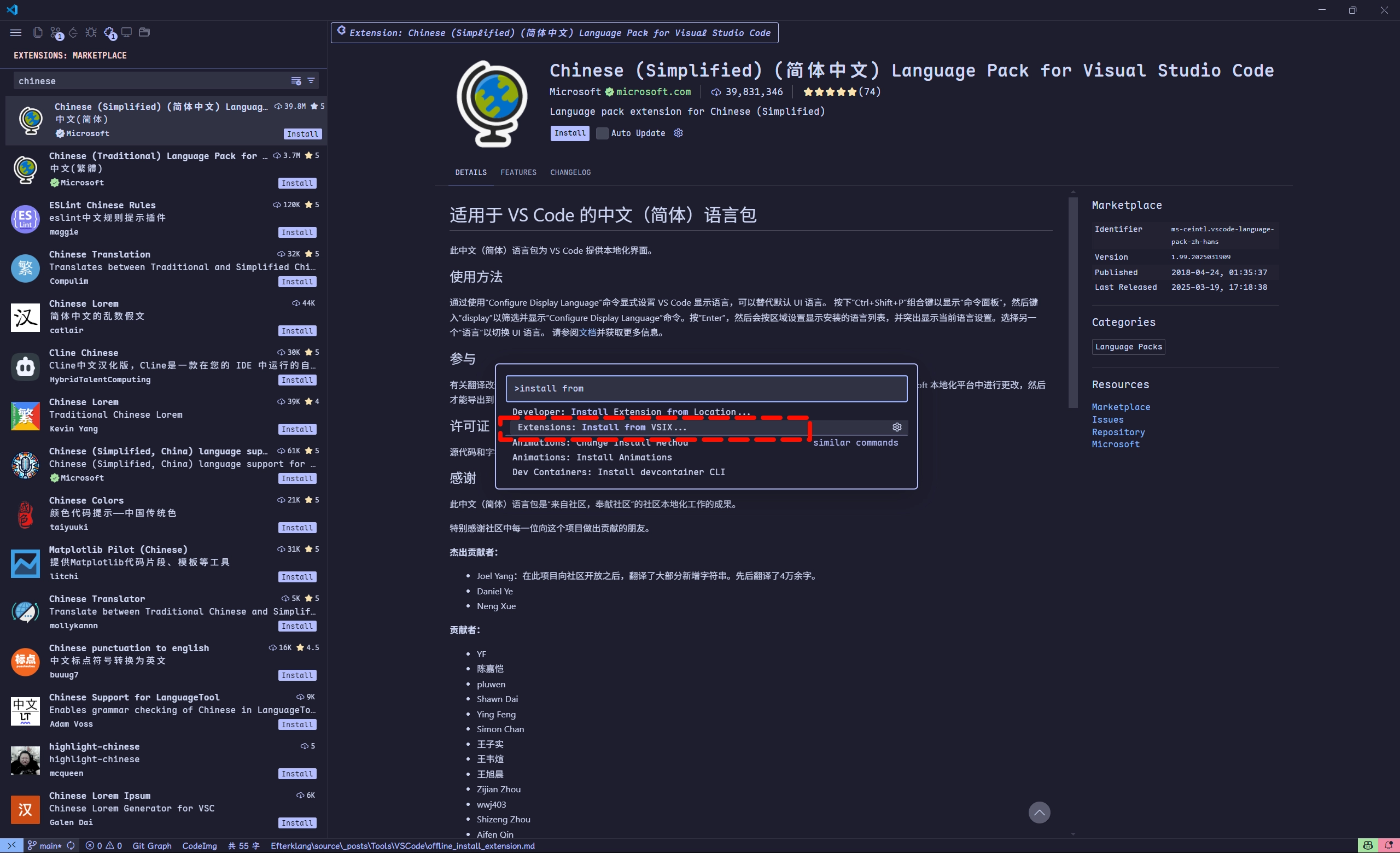
下载好插件后,可通过如下方式在 VSCode 中安装插件
- 按快捷键:Ctrl+Shift+P / ⌘+⇧+P
- 输入并选择:
Extensions: Install from VSIX - 在弹出的文件选择窗口中,找到并选中你下载的
.vsix文件。
在终端执行 code --install-extension <path_to_vsix_file>
Reference
VSCode插件离线安装教程:VSIX文件下载与安装指南